

On November 18, 2026, WordPress announced version 7.1.5 as a security release and recommended updating immediately. That is a current reason to check your dashboard, but the wider lesson will outlast this particular version: know who is responsible for updates, how the site can be restored, and which business functions must work afterward. Read the official release notice.
Start with the business functions you cannot lose
Before changing software, write down the short list of things your website must do. For a service business, that may be showing the right services, accepting a contact request, and delivering its notification. For a store, checkout and payment confirmation belong on the list. For a portfolio, project galleries, video links, and the inquiry route matter.
This list becomes your test after an update. It is much more useful than opening the homepage, seeing the logo, and assuming everything is fine. Include a phone-sized screen because a working desktop menu does not prove that visitors can navigate on mobile.
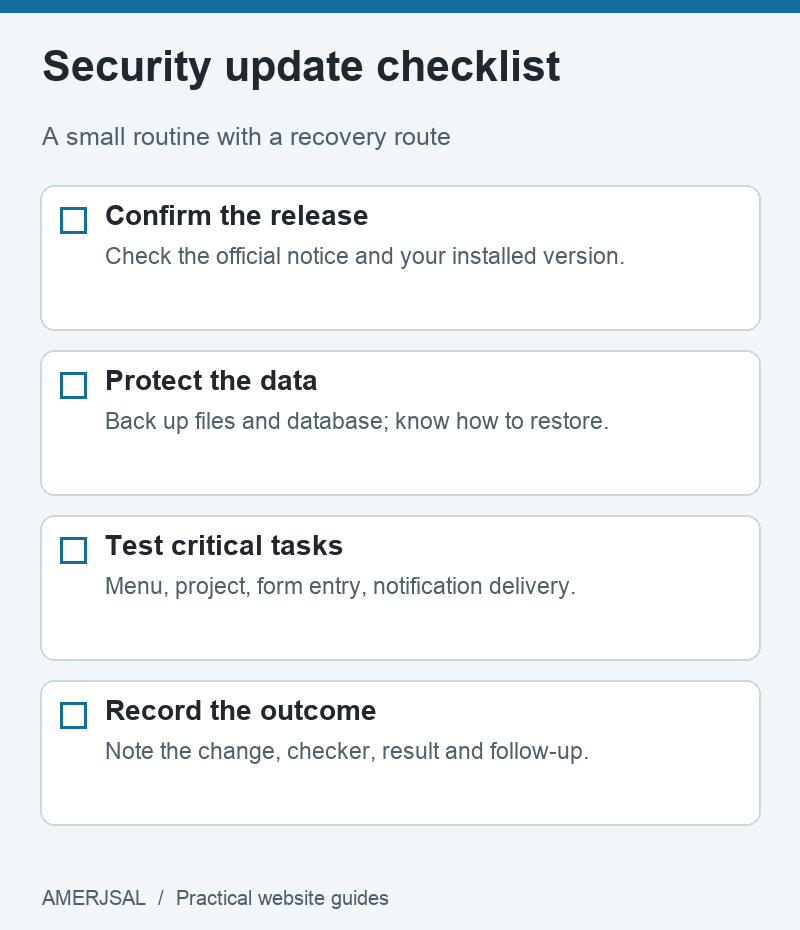
Graphic summary: Checklist: Confirm the release: Check the official notice and your installed version.; Protect the data: Back up files and database; know how to restore.; Test critical tasks: Menu, project, form entry, notification delivery.; Record the outcome: Note the change, checker, result and follow-up.
Make sure the backup can actually help
A backup needs both the database and the relevant files. A database-only copy will not replace missing uploaded images; a file-only copy will not restore form entries stored in the database. Keep a recovery copy separate from the website itself, and know how long restoring it would take.
Ask your developer to demonstrate a restore on a safe environment periodically. Record the backup date and what it covers. A successful backup notification is reassuring, but a tested recovery process is what gives the business a practical way back.
Update with a clear test and recovery route
Use staging to check compatibility when it is available, especially for larger changes. Do not let a lengthy redesign process become a reason to ignore an urgent security release. Your developer can decide how to apply the fix promptly while protecting data and checking the critical paths.
Afterward, check a real form submission, inspect the inbox, open a representative project, and test the menu in both color modes. If payments are involved, use the payment provider’s supported test process. Clear the appropriate caches so you are testing the changed version rather than an older saved page.
Review the software you still depend on
An inactive plugin is not a useful archive strategy. Before removing one, identify its settings, stored records, and any content that depends on it. Export what is needed, confirm the replacement works, and retain a private recovery copy. The aim is an understandable set of responsibilities, rather than a race toward the smallest plugin count.
Access deserves the same attention. Remove accounts people no longer need, avoid shared administrator logins, and use the least powerful role that supports each person’s work. WordPress’s hardening guidance is a useful reference for the technical details behind these decisions.
Give maintenance a visible owner
Keep a simple log: what changed, when it changed, who checked it, and whether there were issues. Put one person in charge of following up. If you outsource maintenance, ask what happens when an update fails and whether form delivery is part of the checks.
The next useful step is small: open your dashboard, review pending updates, and confirm you have a recent recovery copy. If you need help deciding what to update or replace, send me a message with your website address and the function you are most concerned about.